

Open an unsigned app
The desktop installers are not signed or notarized yet, so the first launch shows a warning on macOS and Windows. This is a one-time step: after you allow the app once, it opens normally, including after updates installed the same way.
Prefer not to?
Build the app yourself, or run the server and use it in your browser: brew install irooftop/tap/rooftop, cargo install rooftop or Docker.
macOS
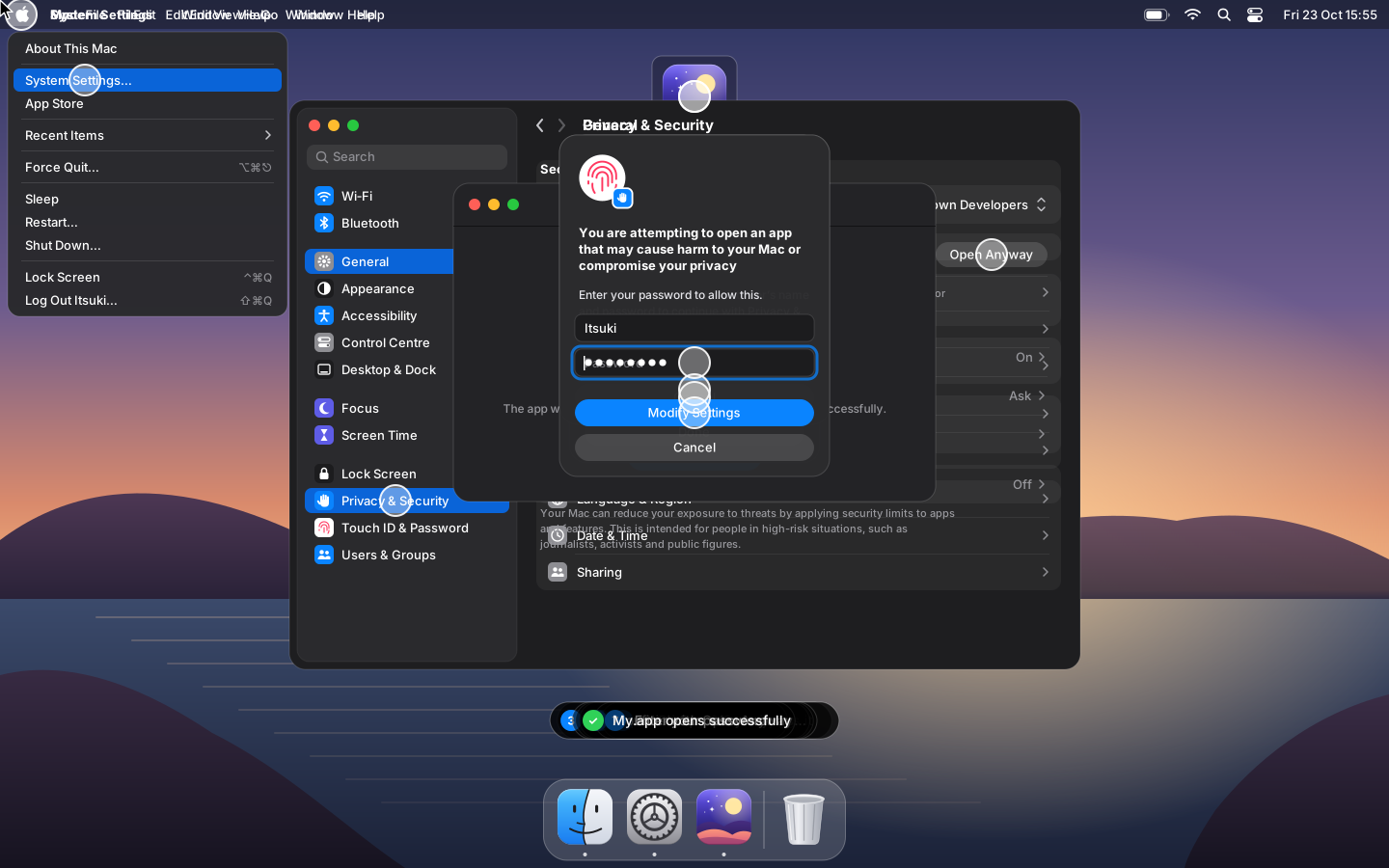
On macOS 15 Sequoia and later:
- Open iRoof.top. macOS says “iRoof.top” Not Opened: Apple could not verify…. Click Done.
- Open the Apple menu → System Settings… → Privacy & Security.
- Scroll down to Security: “iRoof.top” was blocked to protect your Mac. Click Open Anyway.
- Confirm with Open Anyway, and enter your password or use Touch ID.
The Open Anyway button shows up only after you tried to open the app, for about an hour. If it isn't there, open the app again and go back to Privacy & Security.
On macOS 14 Sonoma and earlier, right-click (or Control-click) the app in Finder, choose Open, then Open again.
From the Terminal
Removing the quarantine flag that the browser put on the download works too:
xattr -r -d com.apple.quarantine /Applications/iRoof.top.appIt doesn't always work: on recent macOS, Terminal may need App Management (or Full Disk Access) in Privacy & Security to change apps in /Applications, and it fails with Operation not permitted without it. The steps above always work.
“iRoof.top is damaged and can't be opened”
This message also means the quarantine flag, not a broken download. Click Cancel (not Move to Trash) and run the xattr command above, or follow the System Settings steps.
Windows
SmartScreen shows Windows protected your PC for the installer:
- Click More info.
- Click Run anyway.
If the browser holds the download back (isn't commonly downloaded), open the downloads list, choose ⋯ → Keep, then Show more → Keep anyway. For the .msi, you can also right-click it → Properties → tick Unblock → OK before running it.
On Windows 11 with Smart App Control on, unsigned apps are blocked without a Run anyway button. Use the server instead, or turn Smart App Control off in Windows Security → App & browser control → Smart App Control settings.
Linux
Linux doesn't block unsigned apps, but an AppImage needs permission to run:
chmod +x iRoof.top_amd64.AppImage    # or: Properties → Permissions → Allow executing file as program
./iRoof.top_amd64.AppImage
If it complains about FUSE (dlopen(): error loading libfuse.so.2), install libfuse2 (Ubuntu 24.04: sudo apt install libfuse2t64) or run it with --appimage-extract-and-run.
The packages install with the package manager, which accepts local unsigned packages:
sudo apt install ./iRoof.top_amd64.deb     # Debian, Ubuntu
sudo dnf install ./iRoof.top.x86_64.rpm    # Fedora